Материал: Цели и задачи обучения английскому языку для специальных целей
Give a scientific definition to hardware.
Переведите текст:
Персональный компьютер предназначен для удовлетворения потребностей личности. У персонального компьютера есть четыре основные операции: ввод, обработка, вывод и хранение данных. Данные представляют собой некоторую последовательность, которая вводится в компьютер. Компьютер может быть использован для решения различного рода задач. Для разных целей существуют определенные программы.
USB (Universal Serial Bus).
1.Read. Write down and translate the marked words.
USB (Universal Serial Bus) is the most popular connection used to connect a computer to devices such as digital cameras, printers, scanners, and external hard drives. USB is a cross-platform technology that is supported by most of the major operating systems. On Windows, it can be used with Windows 98 and higher. USB is a hot-swappable technology, meaning that USB devices can be added and removed without having to restart the computer. USB is also “plug and play”. When you connect a USB device to your PC, Windows should detect the device and even install the drivers needed to use it.
There are two versions of USB. The original version of USB, USB 1.0, only supported speeds of up to 11 Mbps and was used mostly to connect keyboards and mice. The latest version of USB, which is known as USB 2.0, supports speeds of up to 480 Mbps. In order to take advantage of the higher speeds of USB 2.0 you will need to have ports installed on your computer that are also USB 2.0.
U SB
connectors come in three different types:
SB
connectors come in three different types:
The Type A connector is the flat connector that plugs into the USB port on your computer.
T he
other end of the USB cable can be either Type B or mini-Type B. The
bigger, square-shaped Type B connector is often used for
scanners and hard drives.
he
other end of the USB cable can be either Type B or mini-Type B. The
bigger, square-shaped Type B connector is often used for
scanners and hard drives.
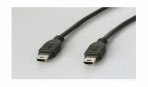
A smaller, trapezoid shaped mini-Type B is used for cameras, MP3 players and other smaller devices.
http://etc.usf.edu/techease/win/hardware/what-is-usb/
2. Give a scientific definition to hot-swappable technology.
3. Tell about the ways usb is used.
4. Complete the following tables.
SHAPES
Part 1.
-
Two-dimensional shapes
Noun
Adjective

square
square

circle

triangle

semicircular

-shaped
Choose yourself
Part 2.
-
Three-dimensional shapes
Noun
Adjective

spherical

hemisphere

cylinder

cone

pyramidal
Choose yourself
Random Access Memory (ram).
1.Read. Write down and translate the marked words.
There's too much "stuff" on your computer's hard disk to use it all at the same time. During the average session sitting at the computer, you'll probably use only a small amount of all that's available. The stuff you're working with at any given moment is stored in random access memory (often abbreviated RAM, and often called simply "memory"). The advantage using RAM to store whatever you're working on at the moment is that RAM is very fast. Much faster than any disk. For you, "fast" translates to less time waiting and more time being productive. So if RAM is so fast, why not to put everything in it? Why do we have a hard disk at all? The answer to that lies in the fact that RAM is volatile. As soon as the computer is switched off, everything in RAM disappears, just as quickly as a light bulb goes out when the plug is pulled. So you don't want to rely on RAM to hold everything. A disk, on the other hand, holds its information whether the power is on or off.
The Hard Disk
All of the information that's "in your computer", so to speak, is stored on your computer's hard disk. You never see that actual hard disk because it's sealed inside a special housing and needs to stay that way. Unlike RAM, which is volatile, the hard disk can hold information forever -- with or without electricity. Most modern hard disks have tens of billions of bytes of storage space on them. Which, in English, means that you can create, save, and download files for months or years without using up all the storage space it provides.
In the unlikely event that you do manage to fill up your hard disk, Windows will start showing a little message on the screen that reads "You are running low on disk space" well in advance of any problems. In fact, if that message appears, it won't until you're down to about 800 MB of free space. And 800 MB of empty space is equal to about 600 blank floppy disks. That's still plenty of room!
The Mouse.
Obviously you know how to use your mouse, since you must have used it to get here. But let's take a look at the facts and buzzwords anyway. Your mouse probably has at least two buttons on it. The button on the left is called the primary mouse button, the button on the right is called the secondary mouse button or just the right mouse button. I'll just refer to them as the left and right mouse buttons. Many mice have a small wheel between the two mouse buttons, as illustrated in Figure 3.
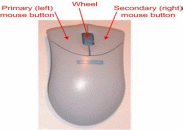 Figure
3
Figure
3
The idea is to rest your hand comfortably on the mouse, with your index finger touching (but not pressing on) the left mouse button. Then, as you move the mouse, the mouse pointer (the little arrow on the screen) moves in the same direction. When moving the mouse, try to keep the buttons aimed toward the monitor -- don't "twist" the mouse as that just makes it all the harder to control the position of the mouse pointer.
If you find yourself reaching too far to get the mouse pointer where you want it to be on the screen, just pick up the mouse, move it to where it's comfortable to hold it, and place it back down on the mousepad or desk.
The Keyboard. [`ki:bˏɔ:d]
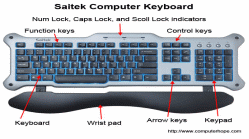
Like the mouse, the keyboard is a means of interacting with your computer. You really only need to use the keyboard when you're typing text. Most of the keys on the keyboard are laid out like the keys on a typewriter. But there are some special keys like Esc (Escape), Ctrl (Control), and Alt (Alternate). There are also some keys across the top of the keyboard labeled F1, F2, F3, and so forth. Those are called the function keys, and the exact role they play depends on which program you happen to be using at the moment.
Most keyboards also have a numeric keypad with the keys laid out like the keys on a typical adding machine. If you're accustomed to using an adding machine, you might want to use the numeric keypad, rather than the numbers across the top of the keyboard, to type numbers. It doesn't really matter which keys you use. The numeric keypad is just there as a convenience to people who are accustomed to adding machines.
Most keyboards also contain a set of navigation keys. You can use the navigation keys to move around through the text on the screen. The navigation keys won't move the mouse pointer. Only the mouse moves the mouse pointer.
On smaller keyboards where space is limited, such as on a notebook computer, the navigation keys and numeric keypad might be one in the same. There will be a Num Lock key on the keypad. When the Num Lock key is "on", the numeric keypad keys type numbers. When the Num Lock key is "off", the navigation keys come into play. The Num Lock key acts as a toggle. Which is to say, when you tap it, it switches to the opposite state. For example, if Num Lock is on, tapping that key turns it off. If Num Lock is off, tapping that key turns Num Lock on.
Combination Keystrokes (Shortcut keys).
Those mysterious Ctrl and Alt keys are often used in combination with other keys to perform some task. We often refer to these combination keystrokes as shortcut keys, because they provide an alternative to using the mouse to select menu options in programs. Shortcut keys are always expressed as: key1+key2 where the idea is to hold down key1, tap key2, then release key1. For example, to press Ctrl+Esc hold down the Ctrl key, tap the Esc key, then release the Ctrl key. To press Alt+F you hold down the Alt key, tap the letter F, then release the Alt key.
Alan Simpson
http://www.coolnerds.com/newbies/hardware/hardware.htm
Describe some other key which is not described in the text.
Словообразование. Подберите к словам на английском языке русские соответствия.
Обратите внимание на слова с приставками un-, non-, in-, dis-, il-, ir-, mis-, mal-, anti-, de-, under-, которые придают слову отрицательное значение.
1) unmagnetized; 2) incomplete; 3) impossible; 4) illegal; 5) irregular; 6) irrelevant; 7) non-programmable; 8) misdirect; 9) malfunction; 10) disagree; 11) disconnect; 12) antiglare; 13) decode; 14) demagnetize; 15) underestimate.
1) неполный, незаконченный; 2) недооценивать; 3) размагничивать; 4) декодировать; 5) противосветовой; 6) несвязный; 7) несогласие; 8) сбой, ошибка; 9) непрограммируемый; 10) беспорядочный; 11) незаконный; 12) невозможный; 13) неправильно, направлять; 14) размагниченный; 15) неуместный.
Подберите к русским словам и словосочетаниям английские соответствия
1) компьютер; 2) значить, означать; 3) считать; 4) преобразовывать; 5) внешнее устройство; 6) жесткий; 7) программируемый; 8) аппаратура; 9) программное обеспечение; 10) инструмент; 11) производить; 12) основной; 13) ввод; 14) обработка; 15) выход; 16) хранение.
1) mean; 2) count; 3) basic; 4) input; 5) storage; 6) output; 7) rigid; 8) transform; 9) computer; 10) device; 11) hardware; 12) programmable; 13) software; 14) tool; 15) processing; 16) perform.
Software.
1.Read. Write down and translate the marked words.
Sometimes abbreviated as S/W, software is a collection of instructions that enable a user to interact with the computer or have the computer perform specific tasks for them. Without software, the computer would be useless. For example, without your Internet browser software you would be unable to browse the Internet or read this page and without a software operating system the browser would not be able to run on your computer.
How do you get software?
Software can be purchased at a local retail computer store and online and is usually included in a box which usually contains all the disks (floppy diskette, CD, DVD, or Blu-ray) required to install the program onto the computer, manuals, warranty, and other important documentation.
Software can also be downloaded to the computer over the Internet. Once downloaded the setup file can be run to start the installation of the program on your computer.
Free software.
In addition to purchasing software there are also millions of free software programs available that are broken into several different types of categories. First, shareware or trial software is software that gives you a few days to try the software before you buy the program. After the trial time expires you'll be asked to enter a code or to register the product before you can continue to use the program. Freeware is another type of free software, this software is free to use to anyone for as long as they wish with no obligations to pay. Finally, open source software is like freeware but not only is the program given away but the code used to make the program is also given away, which allows anyone to modify the program or just view how it was created.
Examples of types of software.
Below is a short list of the different types of software that a computer may have installed as well as an examples of each program. Antivirus (AVG)