Материал: grid
An Easy Reference for ALV Grid Control
Printing Adjustments
We handle printing adjustments via a structure to be passed to the parameter “
is_print
” of the
method “
set_table_for_first_display
”. The structure is as follows:
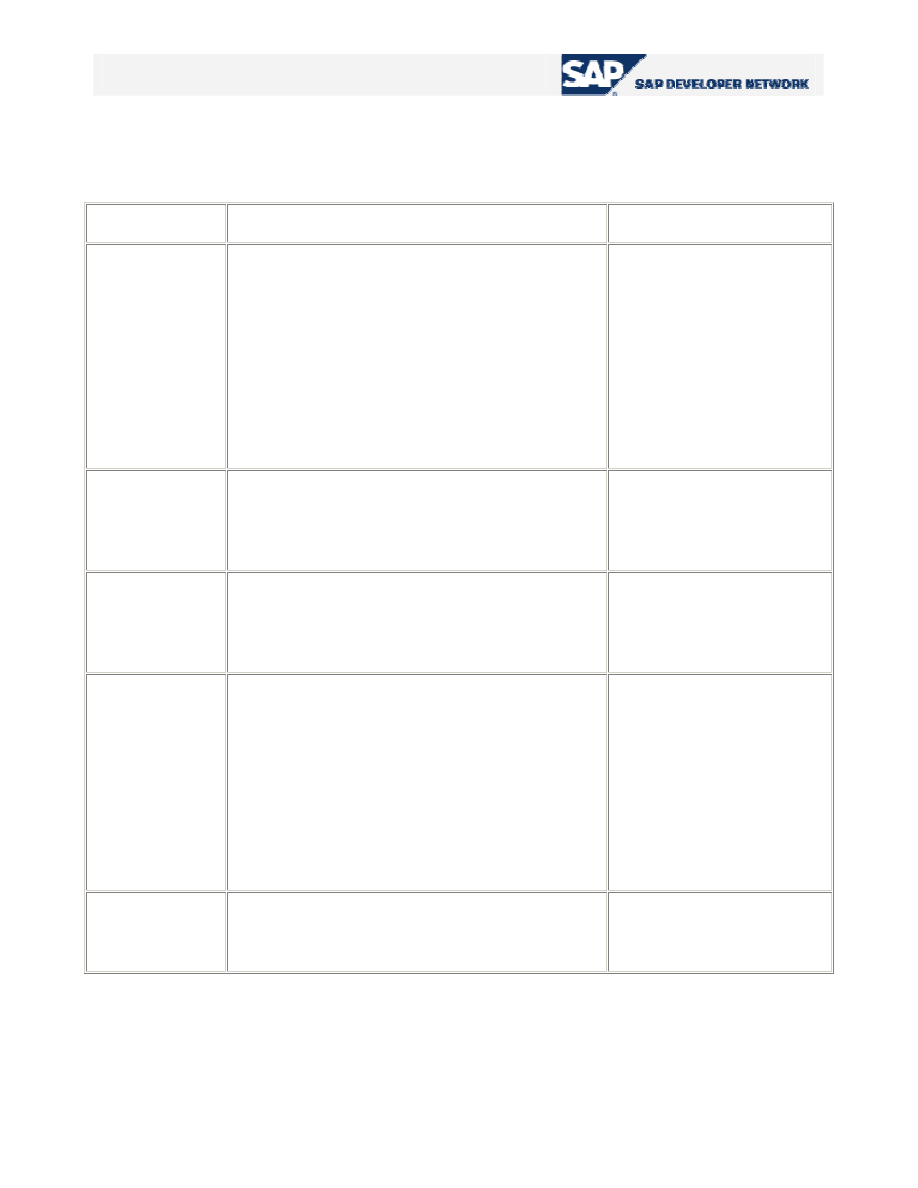
Field name
Description
Value range
GRPCHGEDIT
Enables user-definable group change editing for
the print preview mode. If this field is set, the
jump to the SAP List Viewer is configured
accordingly. On the sort dialog box, the user can
then determine how a sorting criterion value
change is indicated graphically: as a page break
or as an underline.
Using the sort table you can dynamically set this
formatting.
SPACE, 'X'
NO_COLWOPT The ALV Grid Control sets all columns to their
optimum width before the list is printed or
displayed in the print preview. If you set this
parameter, this default setting is overridden.
SPACE, 'X'
PRNTLSTINF Prints
list
information. If this field is set,
information on sorting, subtotals and filters
defined as well as data statistics are printed at the
beginning of the list.
SPACE, 'X'
PRNT_TITLE
Specifies the time at which the grid title is to be
printed.
0-3 with the following
meaning:
0: Before the event
PRINT_TOP_OF_LIST
1: After the event
PRINT_TOP_OF_LIST
2: Before the event
PRINT_TOP_OF_PAGE
3: After the event
PRINT_TOP_OF_PAGE
RESERVELNS
Number of reserved rows for event
print_end_of_page. If no number is specified, the
text specified there is overwritten by the list.
Natural number
Table 6 –
Fields of the structure to handle printing properties
The print output of the field “
PRNTLSTINF
” is not visible in the print preview of the ALV Grid. If you
create a spool request first, you can check the final list layout in transaction
SP01
.
© 2005 SAP AG
21

An Easy Reference for ALV Grid Control
Excluding Unwanted Standard Function Buttons
In your list, you may want to exclude some of the standard function buttons since they are not useful
for your list. To exclude those buttons, you fill a table of type “
UI_FUNCTIONS
” and pass it to the
parameter “
IT_TOOLBAR_EXCLUDING
” of the method “
set_table_for_first_display
”. The
function codes for the buttons may be acquired by inspecting the constant attributes of the class
“
cl_gui_alv_grid
” or putting a break point into a method, like the event-handling method of the event
“
after_user_command
”, which deals with the ALV command.
To hide the entire toolbar, you can set the field “
NO_TOOLBAR
” of the layout structure to ‘X’.
FORM exclude_tb_functions CHANGING pt_exclude TYPE ui_functions .
DATA ls_exclude TYPE ui_func.
ls_exclude = cl_gui_alv_grid=>mc_fc_maximum .
APPEND ls_exclude TO pt_exclude.
ls_exclude = cl_gui_alv_grid=>mc_fc_minimum .
APPEND ls_exclude TO pt_exclude.
ls_exclude = cl_gui_alv_grid=>mc_fc_subtot .
APPEND ls_exclude TO pt_exclude.
ls_exclude = cl_gui_alv_grid=>mc_fc_sum .
APPEND ls_exclude TO pt_exclude.
ls_exclude = cl_gui_alv_grid=>mc_fc_average .
APPEND ls_exclude TO pt_exclude.
ls_exclude = cl_gui_alv_grid=>mc_mb_sum .
APPEND ls_exclude TO pt_exclude.
ls_exclude = cl_gui_alv_grid=>mc_mb_subtot .
ENDFORM .
Code Part 9 –
Filling the table to exclude unwanted standard functions
Here, names beginning with “MC_FC_” are names for functions directly and the names beginning
with “MC_MB_” are for the function menus including some subfunctions as menu entries. By excluding
one from the latter type, you exclude all of the functions under it.
© 2005 SAP AG
22

An Easy Reference for ALV Grid Control
Non-Event Based Additional Functionalities
Up to this point, we are able to display our list in ALV Grid format. However, since requirements never
end, we will want it to do more. In this section, we will go beyond the basics and get much deeper to
specifically deal with additional functionalities that ALV Grid control can handle.
Changing Field Catalog or Layout after First Display
During runtime, it is possible to set a new layout or a new field catalog after first displaying of the list.
These components have set/get methods to accomplish this.
For the field catalog
:
get_frontend_fieldcatalog
set_frontend_fieldcatalog
For the layout
:
Using these methods, anytime at execution, you can get the contents and modify them.
.. ..
DATA ls_fcat TYPE lvc_s_fcat .
DATA lt_fcat TYPE lvc_t_fcat .
DATA ls_layout TYPE lvc_s_layo .
CALL METHOD gr_alvgrid->get_frontend_fieldcatalog
IMPORTING
et_fieldcatalog = lt_fcat[] .
LOOP AT lt_fcat INTO ls_fcat .
IF ls_fcat-fieldname = 'PAYMENTSUM' .
ls_fcat-no_out = space .
MODIFY lt_fcat FROM ls_fcat .
ENDIF .
ENDLOOP .
CALL METHOD gr_alvgrid->set_frontend_fieldcatalog
EXPORTING
it_fieldcatalog = lt_fcat[] .
© 2005 SAP AG
23
An Easy Reference for ALV Grid Control
Code Part 10 –
Changing field catalog and layout after first display
CALL METHOD gr_alvgrid->get_frontend_layout
IMPORTING
es_layout = ls_layout .
ls_layout-grid_title = 'Flights (with Payment Sums)' .
CALL METHOD gr_alvgrid->set_frontend_layout
EXPORTING
is_layout = ls_layout .
.. ..
Setting Sort Conditions
It is possible to set sort conditions for the table data. This is achieved by filling an internal table of
structure “
LVC_T_SORT
” which consists of the sort criteria. To have an initial sorting, pass it to the
parameter “
IT_SORT
” of the method “
set_table_for_first_display
”.
FORM prepare_sort_table CHANGING pt_sort TYPE lvc_t_sort .
DATA ls_sort TYPE lvc_s_sort .
ls_sort-spos = '1' .
ls_sort-fieldname = 'CARRID' .
ls_sort-up = 'X' . "A to Z
ls_sort-down = space .
APPEND ls_sort TO pt_sort .
ls_sort-spos = '2' .
ls_sort-fieldname = 'SEATSOCC' .
ls_sort-up = space .
ls_sort-down = 'X' . "Z to A
APPEND ls_sort TO pt_sort .
ENDFORM. " prepare_sort_table
Code Part 11 –
Preparing the table for sorting settings
© 2005 SAP AG
24

An Easy Reference for ALV Grid Control
We have two important points to tell about this topic. First one is that, be ready for a short dump if any
one of the fields given to be sorted is not in the content of the field catalog. Secondly, when you make
ALV Grid to sort data, by default it vertically merges fields having the same content. To avoid from this for
all of the columns, you can set “
no_merging
” field of the layout structure to ‘X’. If you want to disable
merging for just some columns, set “
no_merging
” field of the field catalog row corresponding to that
column.
You can get and set sort criteria applied whenever you want by using methods
“
get_sort_criteria
” and “
set_sort_criteria
”, respectively.
Filtering
The procedure is like the one in sorting. Here, the type of the table you must fill is “
LVC_T_FILT
”.
Filling this table is similar to filling a RANGES variable.
FORM prepare_filter_table CHANGING pt_filt TYPE lvc_t_filt .
DATA ls_filt TYPE lvc_s_filt .
ls_filt-fieldname = 'FLDATE' .
ls_filt-sign = 'E' .
ls_filt-option = 'BT' .
ls_filt-low = '20030101' .
ls_filt-high = '20031231' .
APPEND ls_filt TO pt_filt .
ENDFORM. " prepare filter table
Code Part 12 –
Preparing the table for filter setting
You can get and set filtering criteria applied whenever you want by using methods
“
get_filter_criteria
” and “
set_filter_criteria
”, respectively.
Making Selections
It is generally required to select some cells, rows or columns in ALV Grid. The structure of the control
gives the opportunity to set different selection modes through the value of the field “
SEL_MODE
” in the
layout structure. Here are those modes and their functionalities:
© 2005 SAP AG
25